
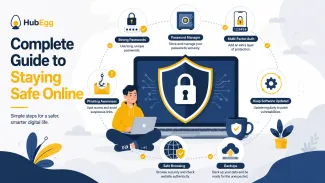
Being safe online does not require you to become a cybersecurity expert. It does require a few good habits.
The same internet connection that lets you learn, communicate, shop, work and manage important accounts can also expose you to scams, stolen passwords, fake login pages and other security problems.
No single setting can remove every online risk. A better approach is to use several layers of protection so that one mistake or one stolen password does not automatically give someone access to everything.
A simple way to remember the main habits in this guide is:
Protect → Pause and Check → Respond
Protect your accounts, devices and information before something goes wrong.
Pause and Check when a message, link, attachment or request is unexpected.
Respond quickly through trusted channels if you think an account or device may have been compromised.
This three-part framework is a HubEgg learning framework. The sections below explain how to put it into practice.
1. Start with your most important accounts
Not every online account has the same importance.
Some accounts deserve more protection because losing control of them could expose important personal information or affect access to other services. Your main email account, financial accounts and accounts containing important personal information are sensible places to start.
A useful first step is to identify the accounts that could cause the most trouble if somebody else gained control of them.
For those accounts, check that you:
- use a strong and unique login method;
- have multi-factor authentication or another stronger login option enabled where available;
- can still access the correct recovery email address or phone number;
- know how to reach the real service without relying on a link in an unexpected message.
You do not need to secure every account in one sitting. Start with the accounts that protect access to the rest of your digital life.
2. Use long, unique passwords or passphrases
When an account still uses passwords, two ideas matter especially:
make the password long, and do not reuse it on another important account.
For HubEgg's beginner guidance, aim for 16 characters or more where the service allows it.
That is a practical safety target, not a universal rule that every website follows.
A longer password can be a randomly generated string or a passphrase made from unrelated words. What matters is that it is difficult for someone else to guess and that you do not reuse the same secret across different accounts.
For example, avoid building your passwords around information other people may know or discover, such as:
- your name;
- birthday;
- favourite team;
- pet's name;
- a common quotation;
- an obvious sequence.
Do not rely on simple substitutions such as changing an a to @ while keeping an otherwise predictable password.
Also, do not assume that adding one uppercase letter, one number and one symbol automatically makes a short or reused password strong.
Length, uniqueness and unpredictability are more useful principles to remember.
Why password reuse is dangerous
Suppose you use the same password for an old shopping account and your main email account.
If that password becomes exposed, both accounts may now depend on a secret that is no longer private.
Using a different password for each account limits how far one exposed password can affect you.
3. Let a password manager do the remembering
Creating a different long password for every account creates another problem: people cannot realistically remember dozens of random passwords.
A password manager can help.
Password managers can generate strong passwords, store them and fill them into login pages when needed.
This guide does not recommend a particular product. The important idea is to use a reputable solution that fits your devices and needs.
Protect access to the password manager itself carefully. Where available, enable multi-factor or two-step verification on the account that protects your saved passwords.
A detailed comparison of password-manager choices belongs in a later HubEgg guide. For now, remember the main benefit:
a password manager makes it practical to use a different strong password for each account.
4. Turn on MFA and use stronger login options when available
A password can be stolen, guessed, reused from a breach or entered into a convincing fake login page.
Multi-factor authentication, or MFA, adds another requirement to the login process.
You may also see names such as:
- two-factor authentication;
- 2FA;
- two-step verification;
- 2SV.
With MFA enabled, knowing the password alone may no longer be enough to enter the account.
Different services offer different methods. These can include:
- verification codes sent by text;
- codes from an authenticator;
- approval through another trusted device;
- security keys;
- passkeys.
These methods should not all be treated as equally resistant to phishing.
A manually entered one-time code can still be captured by a convincing phishing site and relayed to the real service. Modern cryptographic methods such as properly implemented passkeys and security-key technologies can provide stronger phishing resistance because the authentication is tied more directly to the real service.
For a beginner, the practical rule is:
Turn on MFA or two-step verification. If the service offers a passkey, security key or another phishing-resistant option that you can use reliably, prefer the stronger option.
Even a less phishing-resistant second factor can add useful protection compared with relying only on a password, but it should not make you ignore suspicious login requests.
5. Pause before acting on unexpected messages
Phishing messages try to persuade people to open harmful links or attachments or to reveal personal or sensitive information.
They may arrive through email, text messages, social media or other communication channels.
Be cautious when an unexpected message:
- asks you to click a link;
- includes an attachment you were not expecting;
- asks for your password or sensitive information;
- claims there is an urgent problem with your account;
- asks you to confirm payment or financial information;
- pressures you to act immediately;
- appears to come from a familiar company but feels unusual.
One warning sign by itself does not prove that a message is fake. Real organizations sometimes send unexpected messages too.
That is why the safest habit is not simply "spot the scam."
It is:
Pause and verify through a separate trusted route.
If a message says there is a problem with your account, do not make the message itself your only route back to that account.
Open the service yourself using its normal app, a bookmark, or a web address you already know. If you need to contact the organization, use contact information you independently know or verify.
6. Worked example: the urgent account warning
Imagine you receive this message:
Your account will be suspended today because suspicious activity was detected. Sign in immediately to confirm your identity.
There is a button underneath the message.
The message might be real, or it might be phishing.
Instead of deciding based only on how convincing the message looks, use the Pause and Check approach.
Step 1: Do not click immediately
Give yourself time to think.
Urgency is often used to push people into acting before checking.
Step 2: Do not enter your password through the message
If the link leads to a fake login page, anything you enter there may be sent to an attacker.
Step 3: Open the service independently
Use the official app, your existing bookmark or an address you already know.
Step 4: Check your account
Look for security notifications, recent activity or a warning inside the real service.
Step 5: Contact the organization through a trusted route if needed
Use contact information from the legitimate website or another source you already trust, not a phone number or email address supplied only by the suspicious message.
Step 6: Report the suspicious message
Where available, use the email provider, messaging service or organization's official phishing or scam-reporting feature.
Your country's official reporting services may also be appropriate, depending on what happened.
This method does not require you to become an expert at visually detecting every fake message. It gives you a safer process to follow when you are uncertain.
7. Keep your software and devices updated
Phones, computers, browsers and apps contain software. Software can have security weaknesses, and updates can include fixes for known problems.
For normal personal devices:
- install important updates promptly;
- keep your operating system supported and current;
- update browsers and commonly used apps;
- enable automatic updates where appropriate.
Updates do not make a device impossible to compromise. They remove known weaknesses and reduce avoidable risk.
8. Protect personal information deliberately
Personal information can be useful to scammers, identity thieves and people trying to impersonate you.
Before sharing information online, ask:
Who is asking for this, why do they need it, and am I using the real service?
Be particularly careful with combinations of information that may be used to access or recover accounts.
This does not mean that all personal information must remain secret. It means that sensitive information should be shared deliberately, with an appropriate person or service, rather than simply because a message or form asks for it.
Also review privacy and account settings on services you use. If an app or website no longer needs information or permissions you once gave it, consider whether those permissions are still necessary.
9. Protect the devices and network you use
Online account security also depends partly on the devices used to access those accounts.
Start with basic protections:
Keep the device updated. Security updates matter for the operating system and applications.
Protect your home network. Use the security protections available for your home Wi-Fi and connected devices.
Be careful on shared devices. Avoid saving sensitive passwords on public or untrusted computers. Sign out when you finish using an account on a device that is not yours.
A later HubEgg guide can cover detailed home Wi-Fi configuration. For this beginner guide, the important lesson is that the security of an account and the security of the device used to access it are connected.
10. Keep a backup of information that matters
Security is not only about preventing access. It is also about being able to recover when something goes wrong.
Important files, photos, school or work documents and other valuable information should have an appropriate backup.
A backup might be stored using:
- a trusted cloud backup service;
- another device;
- external storage;
- a combination of methods.
The right approach depends on what you are protecting.
A backup does not stop someone from stealing a password or compromising an account. It serves a different purpose: helping you recover important information after loss, damage or certain security incidents.
11. What to do when something seems wrong
Good security habits reduce risk, but problems can still happen.
Signs of possible account compromise can include:
- a password suddenly no longer working;
- a login notification from a device or location you do not recognize;
- recovery information changing without your permission;
- messages or posts appearing that you did not create.
If you suspect a problem:
Stop
Stop interacting with the suspicious message, site or request.
Reach the real service
Open the official service through a trusted route rather than returning through the suspicious message.
Use official recovery tools
If you cannot log in, use the provider's official account-recovery process.
Secure the account
Once you regain access, follow the service's security guidance. This may include changing a compromised password, signing out other sessions and enabling stronger authentication.
Check recovery information and activity
Confirm that recovery email addresses, phone numbers and other security settings have not been changed without your permission.
Review recent activity for things you did not do.
Protect related accounts
If the compromised account could be used to reset or access other important accounts, review those accounts too.
Report where appropriate
Use the service's official reporting tools and, when appropriate, the official reporting channel in your country.
Detailed hacked-account recovery belongs in a dedicated follow-up guide. The goal here is simply to know the first safe steps.
12. Your everyday online-safety checklist
Use this checklist to turn the guide into action.
Protect
- My important accounts use unique passwords, passphrases or stronger login methods.
- Where I use passwords, I aim for long passwords of around 16 characters or more where allowed.
- I use a password manager where it is appropriate for me.
- MFA or two-step verification is enabled on important accounts.
- I prefer passkeys, security keys or other phishing-resistant options where they are available and practical.
- My phone, computer, browser and important apps receive security updates.
- My home network uses appropriate security settings.
- Important information has a backup.
Pause and Check
- I slow down when a message creates sudden urgency.
- I avoid entering passwords through unexpected links.
- I independently open important services to check warnings.
- I verify unusual requests using contact information I already trust.
Respond
- I know how to reach the real services for my most important accounts.
- I know where their official account-recovery options are.
- If I suspect compromise, I will act promptly rather than ignoring it.
- I will use appropriate official reporting tools when needed.
You do not have to complete everything at once.
Choose one important account today and improve one layer of its protection. Then continue with the next account.
The main idea: use layers, not one perfect defense
Online safety is easier to manage when you stop looking for one perfect security tool.
A strong password helps, but MFA can add another layer.
MFA helps, but you should still be cautious about phishing.
Spotting phishing helps, but software still needs updates.
Updates help protect a device, but important files still need a backup.
That is why the HubEgg framework is:
Protect → Pause and Check → Respond
Protect what matters before there is a problem.
Pause and independently check unexpected requests.
Respond through trusted channels when something appears wrong.
Those habits cannot remove every online risk, but together they can make everyday internet use considerably safer and make many common attacks less likely to succeed.
Sources and further reading
This guide was checked on 19 August 2026 against guidance from government cybersecurity and consumer-protection authorities.